Translate manuals. Follow the steps alongside the source.
Read text-based PDF technical manuals with iSomor. Compare instructions, numbered steps and figure references using a page from the LibreOffice Writer guide.
For reading software guides and text-based product documentation.
Keep diagrams and the original manual beside the translation.
Check the exact product model and document version before applying instructions.
Compare a real translation
An English input page and two original iSomor outputs, with no manual corrections. Open or download the PDFs to inspect them at full size.
The interface language is separate from the examples: English → Korean and English → Portuguese (Brazil).
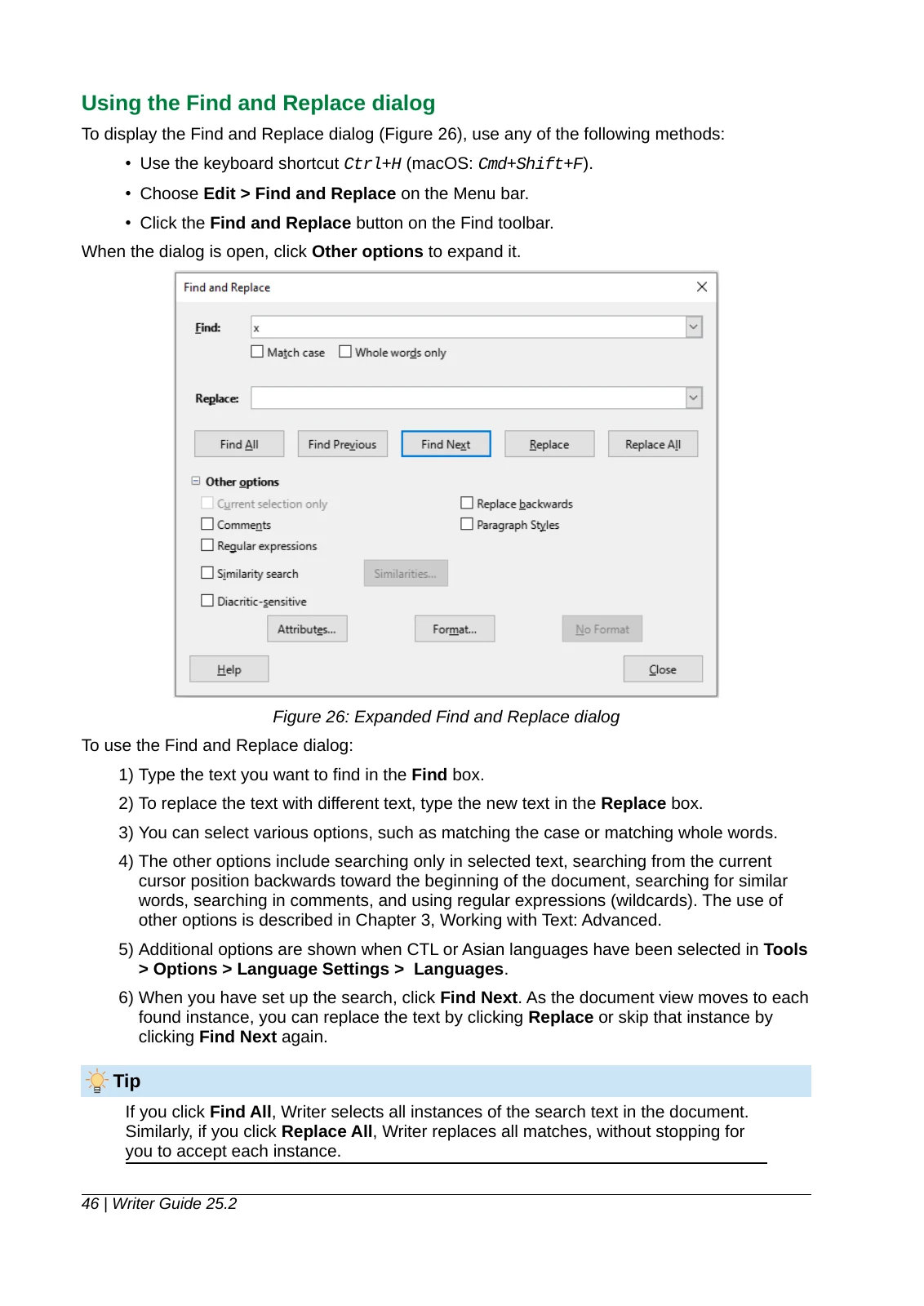
Writer guide: six steps and a dialog illustration
Original PDF page 46
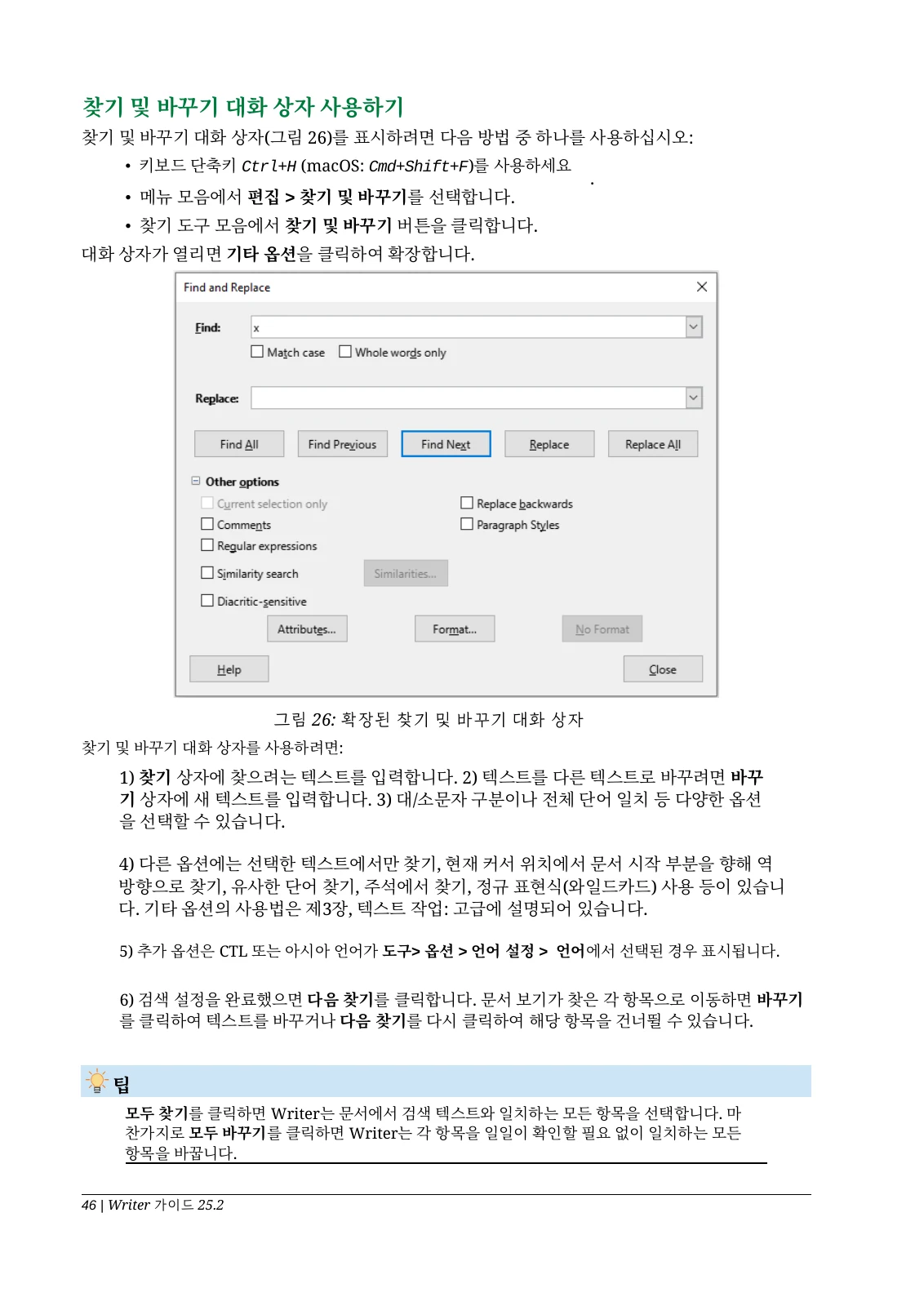
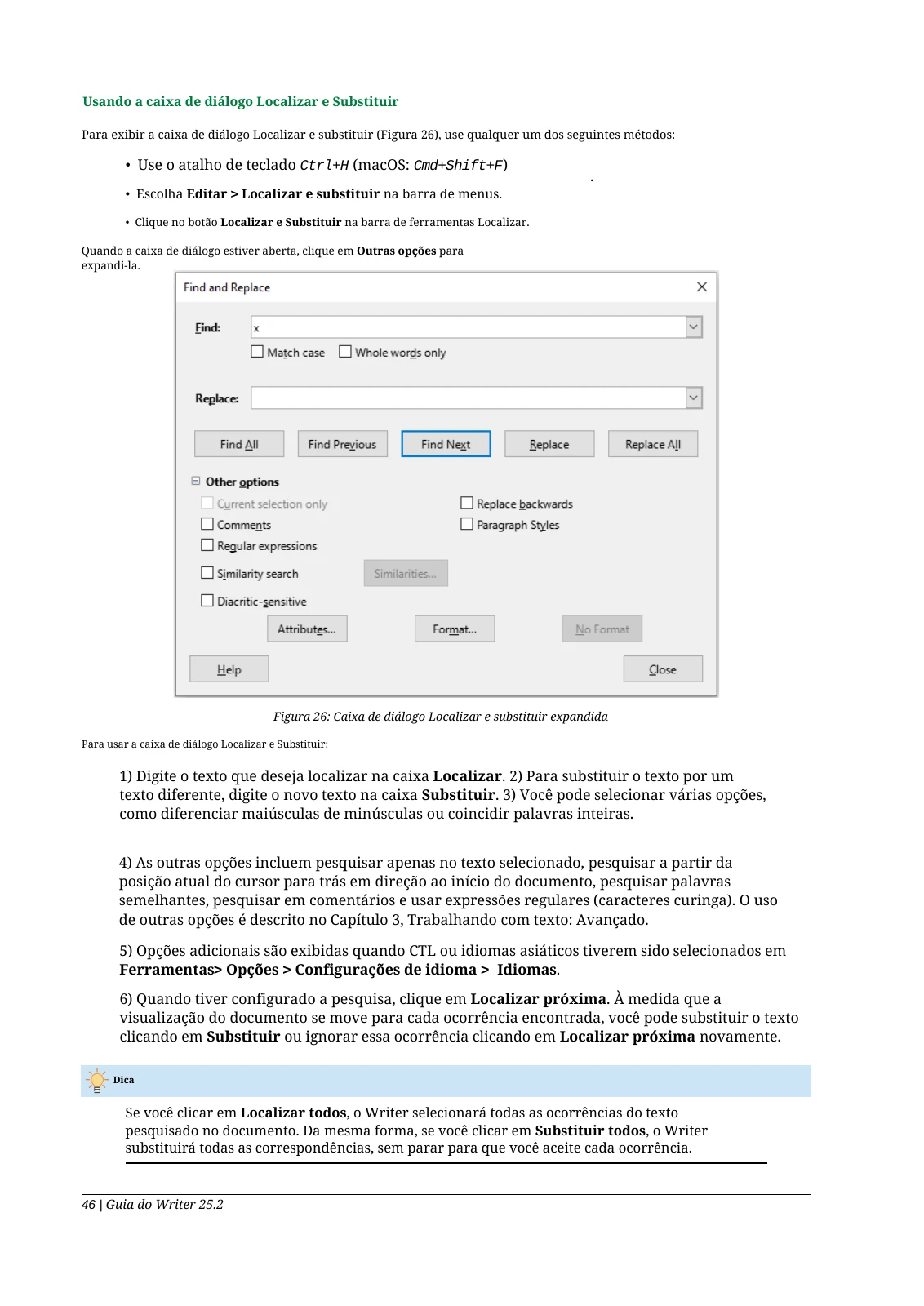
A software guide page about Find and Replace. The screenshot contains English interface labels; this example does not demonstrate translation of image text or safety-critical instructions. Numbered steps remain present, but some paragraphs and step spacing are combined. The dialog screenshot stays in English; match translated commands to the original interface.
1) Type the text you want to find in the Find box.
2) To replace the text with different text, type the new text in the Replace box.
3) You can select various options, such as matching the case or matching whole words.
An excerpt from this PDF, with line breaks and spacing normalized for reading. Translation wording is unchanged. Open the PDF to inspect the original layout.
1) 찾기 상자에 찾으려는 텍스트를 입력합니다. 2) 텍스트를 다른 텍스트로 바꾸려면 바꾸기 상자에 새 텍스트를 입력합니다. 3) 대/소문자 구분이나 전체 단어 일치 등 다양한 옵션을 선택할 수 있습니다.
An excerpt from this PDF, with line breaks and spacing normalized for reading. Translation wording is unchanged. Open the PDF to inspect the original layout.
1) Type the text you want to find in the Find box.
2) To replace the text with different text, type the new text in the Replace box.
3) You can select various options, such as matching the case or matching whole words.
An excerpt from this PDF, with line breaks and spacing normalized for reading. Translation wording is unchanged. Open the PDF to inspect the original layout.
1) Digite o texto que deseja localizar na caixa Localizar. 2) Para substituir o texto por um texto diferente, digite o novo texto na caixa Substituir. 3) Você pode selecionar várias opções, como diferenciar maiúsculas de minúsculas ou coincidir palavras inteiras.
An excerpt from this PDF, with line breaks and spacing normalized for reading. Translation wording is unchanged. Open the PDF to inspect the original layout.
These examples use original digital PDFs. One page does not demonstrate every layout or guarantee the quality of a complete document.
What to check against the original
Match all six steps, menu names, keyboard shortcuts and the Figure 26 reference.
For your own manual, verify model numbers, decimal separators, units, ranges and warning conditions.
Cross-check diagram labels and prerequisites with the original. Seek qualified help for safety-critical operations.
From upload to a reading copy
01
Upload a PDF (digital or scanned) or photos.
02
Choose the source and target languages in the existing translation settings.
03
Compare the original and translation, check important details and download the version you need.
Before you start
Are diagrams and technical specifications always translated?
Text inside images may remain unchanged. Machine translation can misread terminology or units. Check critical specifications and follow the manufacturer’s authoritative instructions; do not rely solely on this example.
Can I translate scanned PDFs and photos?
Digital PDFs, scanned PDFs and photos (JPG, PNG, HEIC) are supported. Photos are combined into a PDF in your browser before upload. Scans and photos require sign-in with a verified account; text is recognized before translation. Scans and photos cost 3 credits per page, with a minimum of 6 credits per task. The first translation and each continuation are separate tasks. Each task covers up to 25 pages, and each file can have up to 50 pages. If a task fails, all credits charged for it are returned. Free credits can also be used. Text recognition can misread or omit content, and the translated layout may differ from the original.
Can I try it without an account?
Guests can preview the first 2 pages of a text-based PDF. Scans and photos require sign-in with a verified account. Sign in with a verified account to continue or download. Verified accounts receive 20 free credits every 7 days; unused free credits do not roll over. Each translated text-PDF page uses one credit. A shared daily budget also applies; check the upload screen for availability. Purchases and subscriptions are unavailable.
How are my documents handled?
Document text is sent to Google Gemini for translation. Originals and results use private storage and temporary access links. This does not mean zero retention; hiding a history entry does not delete stored files or backups. Read the privacy policy before uploading confidential information.