
How to Translate Only Selected Pages of a PDF
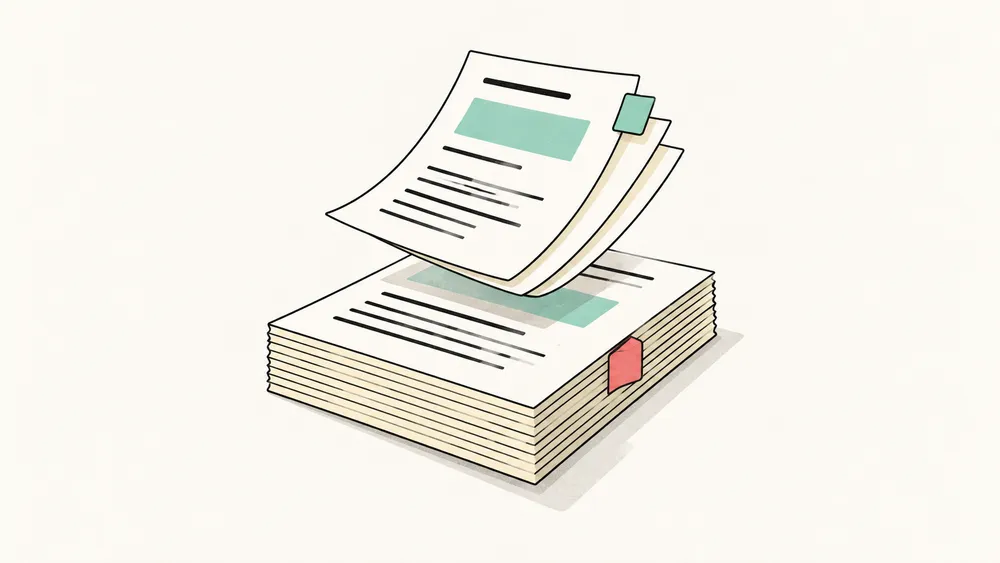
To translate only selected pages of a PDF, first extract those pages into a smaller PDF, then upload that file for translation. This is useful when you need one chapter, a few findings, or an appendix rather than the whole document. With iSomor, extraction happens locally in your browser; translation is a separate cloud step that you start by uploading the extracted file.
The important part is choosing a self-contained section. A shorter file helps focus the work, but a missing definition or the second half of a table can make the translation harder to understand.
1. Choose a complete reading unit
Before entering page numbers, identify what you actually need to read. A chapter is often a better unit than a handful of isolated paragraphs. Look at the pages immediately before and after your selection, and include any material needed to interpret it.
| Selected content | Context worth keeping |
|---|---|
| A chapter or section | Its heading, opening definitions, and concluding paragraph |
| A table or figure | The full table, caption, legend, units, and notes |
| A sequence of instructions | Prerequisites and every step in the sequence |
| A passage with cross-references | The referenced explanation, or an accessible original to consult |
You do not need every referenced page. Keep the pages essential to the current question, and retain the complete source for anything you need to look up later.
2. Distinguish file positions from printed page numbers
The number printed on a page may differ from its position in the PDF. Covers, contents pages, and front matter can shift the count. Check the page’s position from the beginning of the file rather than relying only on its printed label.
For example, imagine a PDF with two unnumbered front pages. Its printed page 1 is the third page in the file. To extract printed pages 1–5, select file pages 3-7.
Confirm both endpoints in the original before extracting. Do not assume the same offset applies throughout a document: appendices or separately numbered sections may restart the printed numbering.
3. Extract the pages into a suitable file
Open the iSomor Split PDF tool and choose your original PDF. Enter the file positions in Pages to include:
1-3, 5selects the first, second, third, and fifth pages.- The tool keeps the order you enter. Repeated selections are included only once.
- Leaving the field empty includes all pages, so enter a range when you want a subset.
Choose One PDF for a continuous chapter or several pages that belong together. This keeps the extract in one file for the next upload. Choose Separate PDFs (ZIP) when you need an individual PDF for each selected page; unzip the download before using those PDFs separately.
The splitter is free, needs no account, and processes the file in your browser. Its current limit is one PDF of up to 20 MB and 200 pages. It does not modify the original. Password-protected PDFs and interactive forms are unsupported, and bookmarks, attachments, and digital signatures are not preserved in the output.
4. Open the extract before translating
Download and open the extracted PDF. Check its first and last pages, the reading order, and the selected page count. A 1-3, 5 selection should contain four pages. Make sure no table, figure note, or sentence is cut off at a selection boundary.
Try selecting a sentence and copying it into a text editor, then zoom in on a line of text to 400% or more. iSomor currently translates only original digital PDFs, such as files exported from Word or LaTeX. Text in these files normally selects and pastes correctly and stays sharp at any zoom level. If the letters turn blurry or blocky, the page is probably a scan, even if its text can be selected: OCR software can add an invisible text layer to a scanned page. iSomor does not translate scans, even after OCR, and extracting a scanned page into a new file does not change that.
If some of the pages you need are scans, go back and extract just the original digital pages. Also leave out any page that has only a picture or drawing and no text, or is almost entirely one picture with only a few words of text, such as a short title, caption, or page number; iSomor treats these like scanned pages. If you need the scanned pages too, look for the original digital version of the document, for example from the author or publisher, or use a translator that supports scans.
Give the extract a traceable name, such as report-file-pages-3-7.pdf. It starts at file position 1 in the new document, even though that page came from position 3 in the original. Keep the source filename and original range in your notes when you need to cite or discuss it.
5. Translate and review the extracted PDF
Upload the smaller file to iSomor PDF translation, choose the target language, and follow the current account and credit requirements. The splitter does not send its result to translation automatically. Local extraction and cloud translation have different processing boundaries; check the Privacy Policy when deciding what to upload.
After translation, compare the extracted source and translation side by side or vertically. Check terminology, numbers, and references to pages outside the extract. Export a translated PDF for reading or a bilingual PDF for review. The bilingual PDF guide explains how to organize that comparison.
Common questions
Can I select pages from different parts of a PDF?
Yes. Combine individual file positions and ranges in the selection field. Keep the entered order deliberate, and check whether the resulting passages still make sense together.
Does extracting pages remove confidential information?
Extraction is not redaction. Retained pages may still contain hidden content. Use an appropriate redaction process when information must be removed, rather than assuming a smaller PDF is sanitized.
Is translating the extract also free and local?
The splitter is free and local. Translation requires a separate upload and follows the normal account and credit rules shown in the translation interface.
Ready to work with a smaller, coherent section? Extract the pages you need, check the result, then upload that PDF for translation.