
How to Translate a Scanned PDF: What to Check First
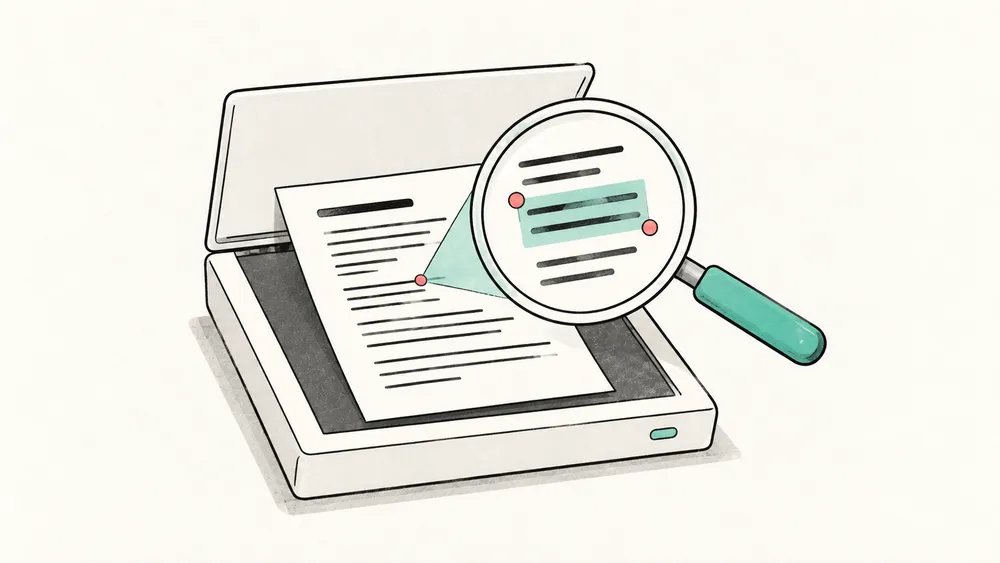
To translate a scanned PDF, first check what the file actually contains: original digital text, pictures of text, or pictures of text with a text layer added by optical character recognition (OCR). An image-only page contains no text to read, so translating it takes a translator that supports scans. Changing the file extension or making the scan sharper does not turn a picture of text into text.
iSomor currently translates only original digital PDFs: files exported from Word, LaTeX, a web page, or a similar source, where the words you see are stored as text rather than as a picture. It does not provide built-in OCR or support scans and text embedded in images. Running a scan through OCR in another tool first does not change this: the pages normally remain images with a recognized text layer added, and iSomor does not support them. This guide helps you tell which kind of file you have, look for an original digital version, and check the result when you translate a scan in another tool.
1. Check the page, not just the filename
A .pdf filename does not tell you how the words are stored. Open the file, select a sentence, and paste it into a plain-text editor. Check whether the pasted words match what you see. A rectangle around the whole page is not the same as selecting individual words.
Repeat this on several relevant pages. A document may combine exported text, scanned inserts, and screenshots. A successful test on the cover tells you little about an image-only appendix.
Then zoom in on a line of text to 400% or more. In an original digital PDF, the letters normally stay sharp at any zoom level. On a scanned page, they usually turn soft or blocky, and you may notice paper grain, shadows, or slightly tilted lines. This check matters because a scan that has been through OCR can pass the copy test: its words select and paste, yet the page is still an image. Treat the result as a strong hint, not proof: a few older digital PDFs use fonts that also look blocky when enlarged, and a very high-resolution scan can stay sharp.
| What you observe | What it may mean | Useful next step |
|---|---|---|
| Individual words select and paste correctly, and the letters stay sharp when you zoom in | The page is probably original digital text | Test other pages you need |
| Words select and paste, but the letters turn soft or blocky when you zoom in | The page is probably a scan with an OCR text layer | Treat it as a scan: look for the original digital file or use a translator that supports scans |
| Only an image or a page-sized rectangle selects | The page may be image-only | Look for the original digital file or use a translator that supports scans |
| Words select, but pasted text is garbled or incomplete | Text exists, but extraction or recognition is unreliable | Compare the extracted text with the page before translating; if the letters turn soft or blocky when you zoom in, treat the page as a scan |
| Some pages work and others do not | The PDF may contain mixed page types | Check each page you need; scanned pages need an original digital version or a translator that supports scans |
| The viewer reports copying restrictions | Document permissions may prevent extraction | Ask the owner for an authorized, usable copy |
These are diagnostic clues, not a complete file analysis. Do not assume every copy failure means the document needs OCR.
2. Prefer the original digital PDF when available
Before working with a scan, check whether an original digital version exists. The author, publisher, or document owner may be able to provide the original PDF export, and papers, books, and reports can sometimes be downloaded from the publisher’s website or a repository. An original digital PDF avoids recognition errors in names, symbols, and references, and it is the kind of file iSomor can translate.
If a text layer already exists, iSomor’s free PDF to text tool can help inspect it page by page. It extracts existing text locally in your browser; it does not perform OCR. Empty output from a scanned page is therefore not a translation failure, and text in the output does not show whether a page is original digital text or a scan with an OCR layer.
The tool produces text, not a replacement for the PDF’s layout. Columns, tables, or formulas may come out in an unexpected order. Keep the original page open while checking the result.
3. If the scan is the only copy, use a translator that supports scans
If the scan is the only available copy, iSomor cannot translate it. Use a translator that reads scanned PDFs directly, or one that accepts a PDF you have run through OCR yourself. Choose the document’s actual language where the tool offers that option, and keep the original scan alongside any processed copy.
OCR recognizes characters; it does not translate their meaning. Adobe’s text recognition documentation explains how its OCR workflow makes scanned text selectable and searchable. Use the instructions for your chosen tool rather than assuming every PDF application includes OCR.
If your tool saves a PDF after OCR, reopen it and repeat the selection-and-copy test. A file that looks unchanged may now have a text layer, but appearance alone cannot establish its quality. The file also remains a scan: the new layer makes its text selectable and searchable, but it does not make the file one that iSomor supports.
4. Review the recognized text before translating
If the tool shows or saves the recognized text, check the parts where a small recognition error would change the reading:
- Names, identifiers, dates, and section references.
- Decimal separators, minus signs, units, and symbols.
- Table headers and the values associated with each row.
- Column order, captions, and words split across line breaks.
- Any faint, cropped, rotated, or handwritten passages.
For example, imagine a scanned reading handout refers to “Section 10,” but the extracted text says “Section IO.” The page image still looks correct. A translator, however, may receive the mistaken letters. Correcting the text layer or obtaining a better source addresses the input problem; translating the same faulty text again does not.
This is an illustrative example, not an iSomor test result. Adobe also documents a recognized-text review process for inspecting uncertain OCR matches. Whatever tool you use, compare important passages against the scan yourself.
5. Test a sample before translating everything
Before translating a whole scanned document in the tool you chose, try a small representative sample. Include a difficult page, not only the cleanest paragraph. Check whether the text is read, whether the reading order makes sense, and whether important details remain understandable.
This test belongs in the tool you chose, not in iSomor. iSomor supports only original digital PDFs, not scans, even after OCR; a scanned page or screenshot does not become supported merely because other pages contain text. If the sample comes out wrong, return to the source or the OCR stage rather than assuming another translation attempt will fix it.
After translation, compare uncertain passages with the original. The bilingual PDF review guide explains how to keep both versions available for checking. Have another person review important material when errors would matter.
Two common questions
Will printing an image to PDF make it translatable?
No. Putting an image into a PDF does not, by itself, create text; the page is still an image. Check the resulting file instead of relying on the export format.
My scan already has selectable text. Can iSomor translate it?
No. Selectable text on a scanned page comes from an OCR layer; the page itself is still an image, and iSomor does not support it. If only some pages are scans, check the pages you actually need. To translate just the original digital pages, extract them into a new PDF first, for example with the iSomor Split PDF tool. Leave out any page that has only a picture or drawing and no text; iSomor treats it like a scanned page.
If your file is an original digital PDF, upload it to iSomor and review a sample before continuing. Current access and translation allowances are shown on the upload screen.
If it is a scan, iSomor cannot translate it yet. If the upload page detects an image-only scan, it stops before the file is uploaded and shows an optional checkbox: select it and enter your email address to be notified once scanned PDF support is ready. The address is used only for that one notification; the Privacy Policy explains how it is handled.