
How to Convert a PDF to Text (TXT) and Check What Came Out
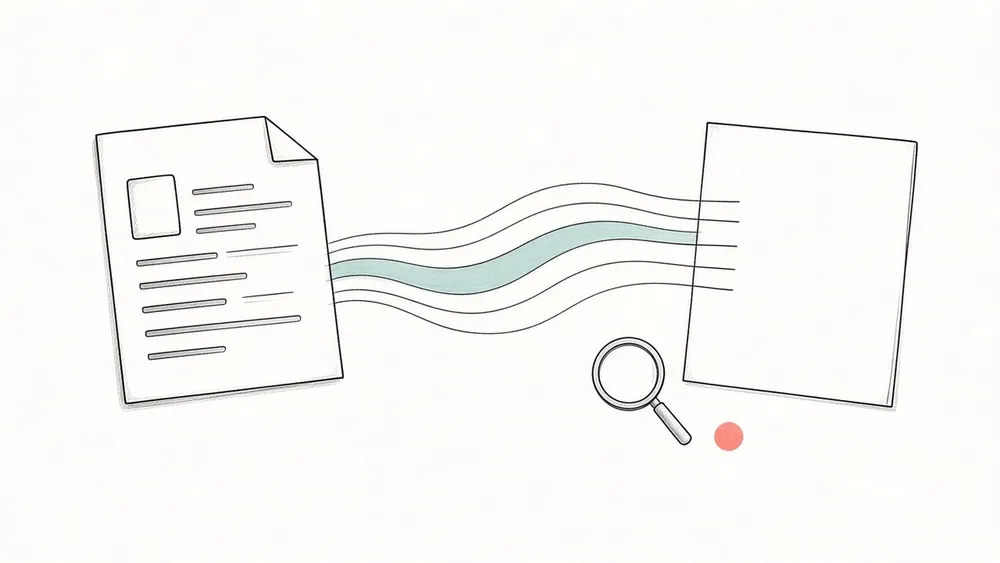
To convert a PDF to text, you need a PDF that already contains a text layer: the converter copies the words stored in the file, not a picture of the page. Extract only the pages you need into a TXT file, then check it against the original for six things: empty pages, column order, headers and page numbers, tables, formulas and symbols, and garbled characters. Clean up line breaks last, once the order is right. A TXT file is useful for notes, quoting, searching a long manual in a text editor, or reusing a passage in another document. It is not a copy of the page: fonts, images, columns, and table grids are gone, and the order of the words depends on how the PDF was made.
What does a PDF-to-text conversion give you?
A plain text file contains characters and line breaks, nothing else. When a PDF is converted to text, every word that is stored as text is read out of the file and written in a sequence. Bold headings become ordinary lines, tables become rows of words, and pictures disappear.
The sequence is the part that surprises people. A PDF records where each piece of text is drawn on the page; it does not have to record which paragraph comes next. The PyMuPDF documentation puts it plainly: plain text extraction makes "no effort" to prettify the result, and "for PDF, this may mean output not in usual reading order, unexpected line breaks and so forth" (PyMuPDF text recipes). So a converted file can contain every word and still read wrongly.
Does your PDF have text to extract?
Before converting, open the PDF and try to select a single sentence with your cursor.
- The words highlight one by one: the page has a text layer, and a text converter can read it.
- You cannot select a sentence: the page probably has no text layer. A text converter has nothing to read on that page, and iSomor's PDF to text tool does not perform OCR. If you are unsure, just run the extraction; pages without readable text are listed.
- The viewer asks for a password or says copying is not allowed: the document is protected. Ask the owner for an unprotected copy you are allowed to process.
A document can mix both kinds of page, for example a report with a few inserted images of signed pages. Expect those pages to have no extractable text.
How do you convert a PDF to TXT, step by step?
The steps below use the iSomor PDF to text tool, which reads the existing text layer in your browser and lets you check each page before you take the text.
- Choose one PDF. The tool accepts one text-based PDF at a time, up to 20 MB and 200 pages. A file longer than 200 pages is not accepted, even if you only need a few of its pages. The file is processed in your browser and is not uploaded.
- Enter the pages you need. Leave the page range empty for all pages, or type a range such as
1-3, 5. Page numbers are positions in the file starting at 1, covers included, so they may differ from the numbers printed on the pages. If you need only one chapter, extracting just that chapter gives you less to check. - Preview page by page. Step through the pages and compare each one with the original. If some of the selected pages have no readable text, their page numbers are listed, and so are pages where text in hidden layers was skipped (as in a PDF viewer, layers that are hidden by default are not extracted). If none of the selected pages has readable text, the tool says there is no readable text in the selected pages and does not produce a TXT file.
- Copy or download. Copy all the extracted text, or download a TXT file. Both the copied text and the TXT file put a form-feed character between every two pages, so the page boundaries are still there. The TXT file is saved as UTF-8 with LF line endings.
The tool handles up to 200,000 characters per page and 1 million characters in total. For a very long document, convert it in parts.
What should you check in the TXT file before using it?
Keep the original PDF open next to the text and look at these spots first. They are where extracted text most often goes wrong, and each one needs a different fix.
| What to check | What it looks like in the TXT | What to do |
|---|---|---|
| Empty pages | A page number listed as having no readable text, or a message that the selected pages have no readable text | Check whether that page is an image. Do not assume the file is broken; the rest may be fine. |
| Column order | Half a sentence from the left column runs into half a sentence from the right | Extract a smaller range and compare it with the page. Do not delete line breaks yet; that only hides the problem. |
| Headers, footers, page numbers | A running title or page number in the middle of a paragraph | Remove only the lines you have confirmed against the page. A number on its own line may be a section number or data. |
| Tables | Cells turn into a run of words and numbers, sometimes in a different order | Rebuild the rows from the original before using any figure. Check headers and units, not only the numbers. |
| Formulas and symbols | Superscripts, fractions, minus signs, or Greek letters are flattened or missing | Copy formulas from the original by hand, or keep them as a reference to the page. |
| Garbled characters | Boxes, question marks, or the wrong letters, while the PDF looks normal | This comes from how the font is encoded in the file. Line-break cleanup cannot fix it; look for another export of the document. |
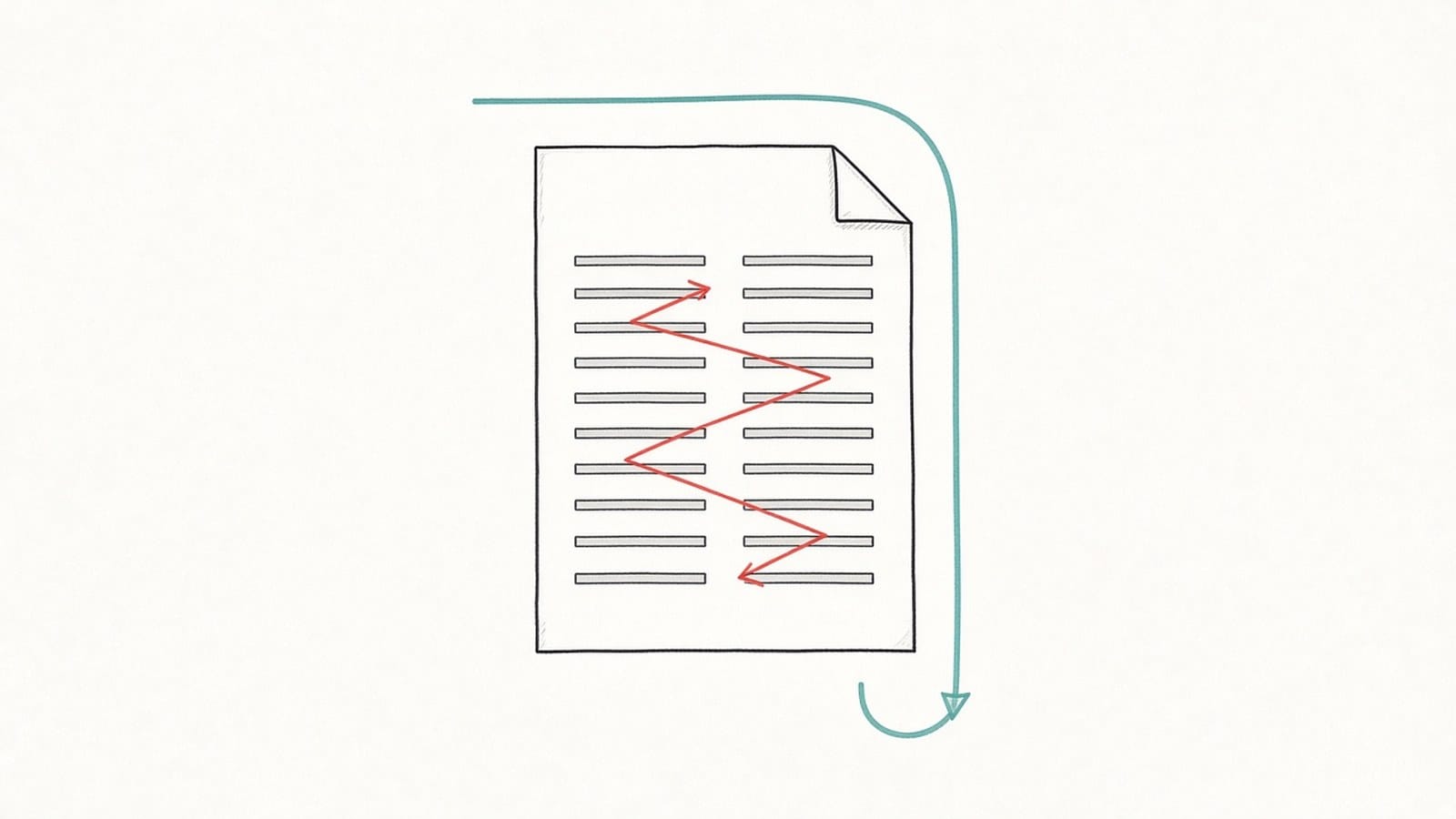
The column problem has its own explanation. If you are translating rather than extracting, the same cause makes translated two-column papers read out of order, which is covered in why two-column PDF translation comes out in the wrong order.
When should you clean up line breaks?
After the order is right. Converted text often breaks a sentence at the end of every printed line, and it is tempting to join everything at once. If two columns are still mixed or a footer still sits inside a paragraph, joining lines only glues the wrong pieces together.
Once the order is correct, joining single line breaks while keeping blank lines between paragraphs is usually safe. Headings, lists, and hyphens at the end of a line need separate attention. The walkthrough in why text copied from a PDF comes out messy shows these cases with real before-and-after examples, using the iSomor Text Cleaner.
When is plain text the wrong format?
Plain text is the right choice when you want words to reuse. It is the wrong choice when the layout carries meaning: a table you need to read row by row, a figure with its caption, or a formula in context.
If your real goal is to read a foreign-language PDF, converting it to TXT and translating the text throws that context away. iSomor translates the original text-based PDF instead and keeps the page layout where possible, so you can read the translation in place or as a side-by-side bilingual PDF. The details of what stays on the page are in Does iSomor keep PDF layout when translating?.
FAQ
Why does the tool say there is no readable text?
None of the pages you selected has a text layer the tool can read, so no TXT file is produced. They are probably scanned pages or pages saved as images. A text converter reads stored text; it does not recognize words in a picture. If you can, ask for a PDF exported from the original document.
Does the TXT file keep the PDF's layout?
No. The text follows the order stored in the PDF, with simple line breaks rebuilt. Columns, tables, and mathematical notation can come out jumbled, which is why the checks above matter.
Which page numbers should I enter?
Use positions in the file, starting at 1 and counting the cover. For example, 1-3, 5 selects the first three pages and the fifth. If a page appears twice in your range, it is extracted once, in the order you typed.
What is the odd symbol between pages?
The copied text and the TXT file separate pages with a form-feed character. Depending on the editor, it may be invisible or shown as a small symbol or ^L. You can leave it as a page marker or delete it.
Can I convert a password-protected PDF to text?
Not with the iSomor PDF to text tool. It does not open password-protected PDFs or documents that do not allow copying. Use an unprotected copy that you have permission to process.