
How to Translate a Long PDF (300+ Pages) Without Losing the Layout
To translate a long PDF of 300 pages or more, upload the file to a PDF translator instead of pasting text into a chat window, and check first that it is an original digital PDF, not a scan. On the iSomor website, a single file can have up to 1,500 pages and 300 MiB. Layout such as tables, figures, and multi-column text is kept "where possible", so for a long book the real work is preparing the file well and reviewing the result in a planned way.
Why do long PDFs fail in a chat window?
Many readers start by pasting pages into an AI chat. It works for a few pages and then falls apart: one reader described it handling short files but not a 300-page one, and others are working through books of more than 800 pages. Pasting has two problems. Long text gets cut off or summarised instead of translated, and the layout disappears, so headings, tables, and captions arrive as loose lines. Translating the PDF as a file keeps the job in one place and gives you back a PDF that still looks like the source.
What should you check before you upload?
A few minutes of checking saves you from finding a problem on page 280. Work through this list with the original file open.
- Confirm there is a real text layer. Try to select a sentence and paste it into a text editor, then use your PDF viewer's search to find a word you can see on the page. If selection fails or search finds nothing, the page is probably a scan.
- Zoom in to be sure. OCR software can add an invisible text layer to a scanned page, so selectable text does not prove the file is digital. Zoom a line to 400% or more. Digital text stays sharp; scanned letters turn blurry or blocky. iSomor does not translate scans, even after OCR.
- Check pages that are mostly pictures. A page that is almost entirely one large image, with only a caption or page number, is treated like a scan. Text inside images is not translated and stays in the original language.
- Check the page count and file size. Your viewer's document properties show both. The website accepts up to 1,500 pages and 300 MiB per file. A larger file is refused with the message that it "exceeds the supported page or file size limit. Choose a smaller PDF."
- Remove what you do not need. Indexes, blank pages, long reference lists, and appendices you will never read still count as pages. Cutting them makes the job smaller and the review shorter.
- Use the original, not a previous output. A file that iSomor has already translated cannot be translated again.
If the book you have is a scan, see what to check first with a scanned PDF before going further.
Should you translate the whole book at once or split it?
Both are possible within the size limit. There is no separate per-run page cap for text PDFs, but each translation is bounded by your available quota, and iSomor does not quietly translate part of a file. In its own words: "We will not silently translate only part of your document." So the question is practical: how much can you translate now, and how do you want to read and check it?
Splitting usually helps with a book. Smaller files fit your quota more easily, you can start reading part one while you prepare part two, and a problem in one chapter does not hold up the rest.
How do you split a long book sensibly?
Split at the book's own boundaries, not at a round page number. A cut in the middle of a chapter can separate a table from its notes, or a term from the page where it is defined.
- Cut at chapter or part breaks. Use the table of contents to find where each part starts, then check the actual page in the file. Printed page numbers often differ from file positions because of front matter.
- Keep context with each file. Put the table of contents, or at least the relevant section of it, at the start of every part, and include a glossary or list of abbreviations if the book has one.
- Keep figures and tables whole. If a chapter ends on a table or figure that continues onto the next page, move the cut so it stays together.
- Name files in order. Use names such as book-title-part-1-ch01-04.pdf and book-title-part-2-ch05-09.pdf, so the parts sort correctly and you can always trace a translated page back to the source.
The free iSomor Split PDF tool runs in your browser and accepts one PDF of up to 20 MB and 200 pages; for a bigger book, use another PDF editor to cut it into parts first. The guide on translating only selected pages explains how to enter page ranges and why printed page numbers and file positions can differ.
What if your quota or the site's daily capacity runs short?
Two different limits can slow a long project. The first is your own available quota. If it does not cover the file, you can wait for it to reset, request more free quota, or split the PDF and translate the parts one at a time. The second is a daily processing capacity that the site shares among all users. A long file may hit it on a busy day; if that happens, try again after 00:00 UTC the next day. If a job stops before the end, you can continue translating the remaining part.
How do you run a long translation?
- Try a sample first. As a guest you can preview the first 2 pages for free; sign in to translate the full document. If your opening pages are only a cover and contents, extract a representative chapter with a table or figure and test that instead.
- Stay on the page while the file uploads. The site shows "Uploading file, please do not close this page" during this step.
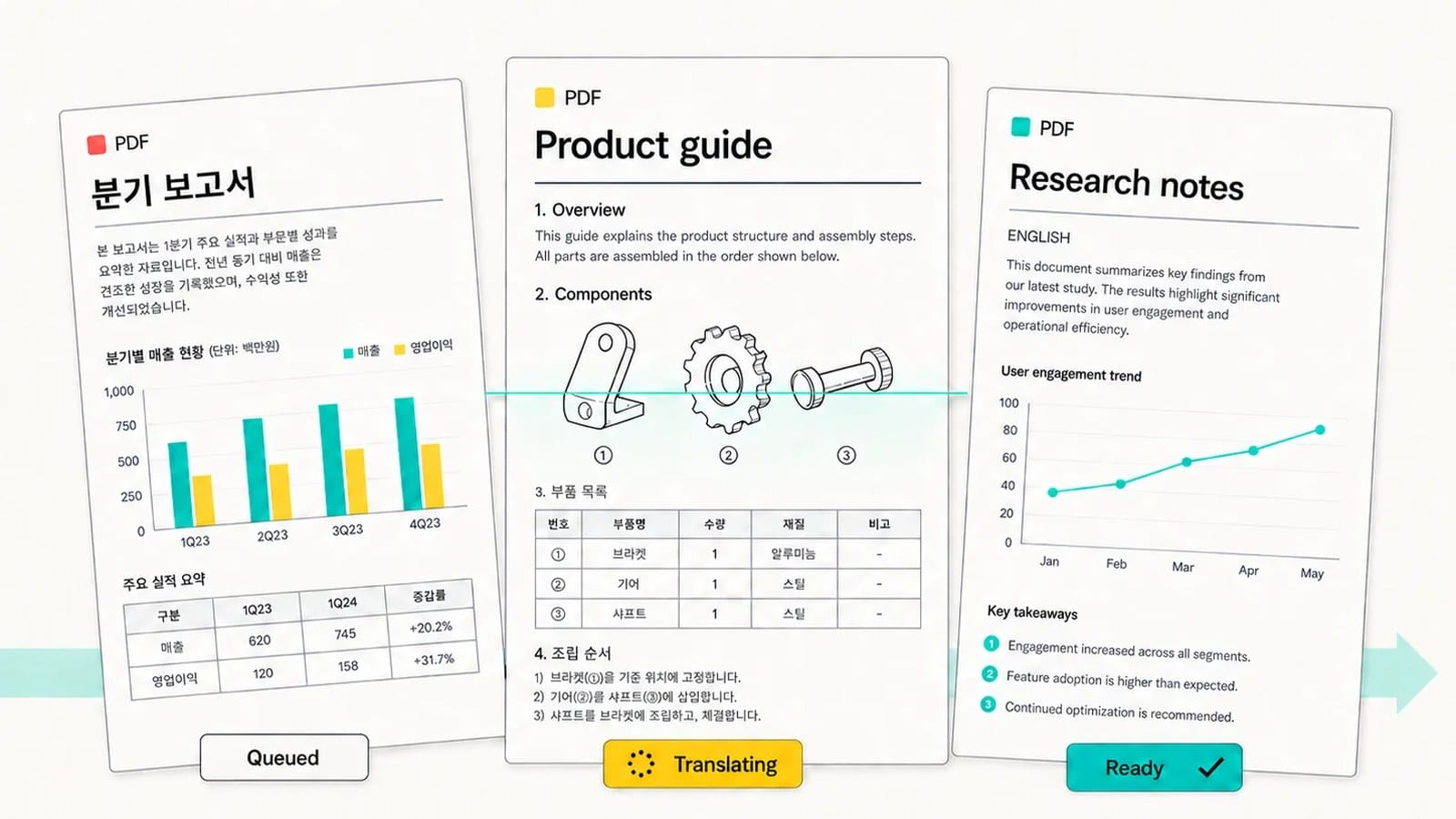
- Leave once processing starts. The site says "You can safely close this page. We will send the completed PDF to" your email address, and you can choose "Email Me When Ready".
Which output is best for reading a long book?
iSomor offers three downloads, and you can also preview the result in the browser.
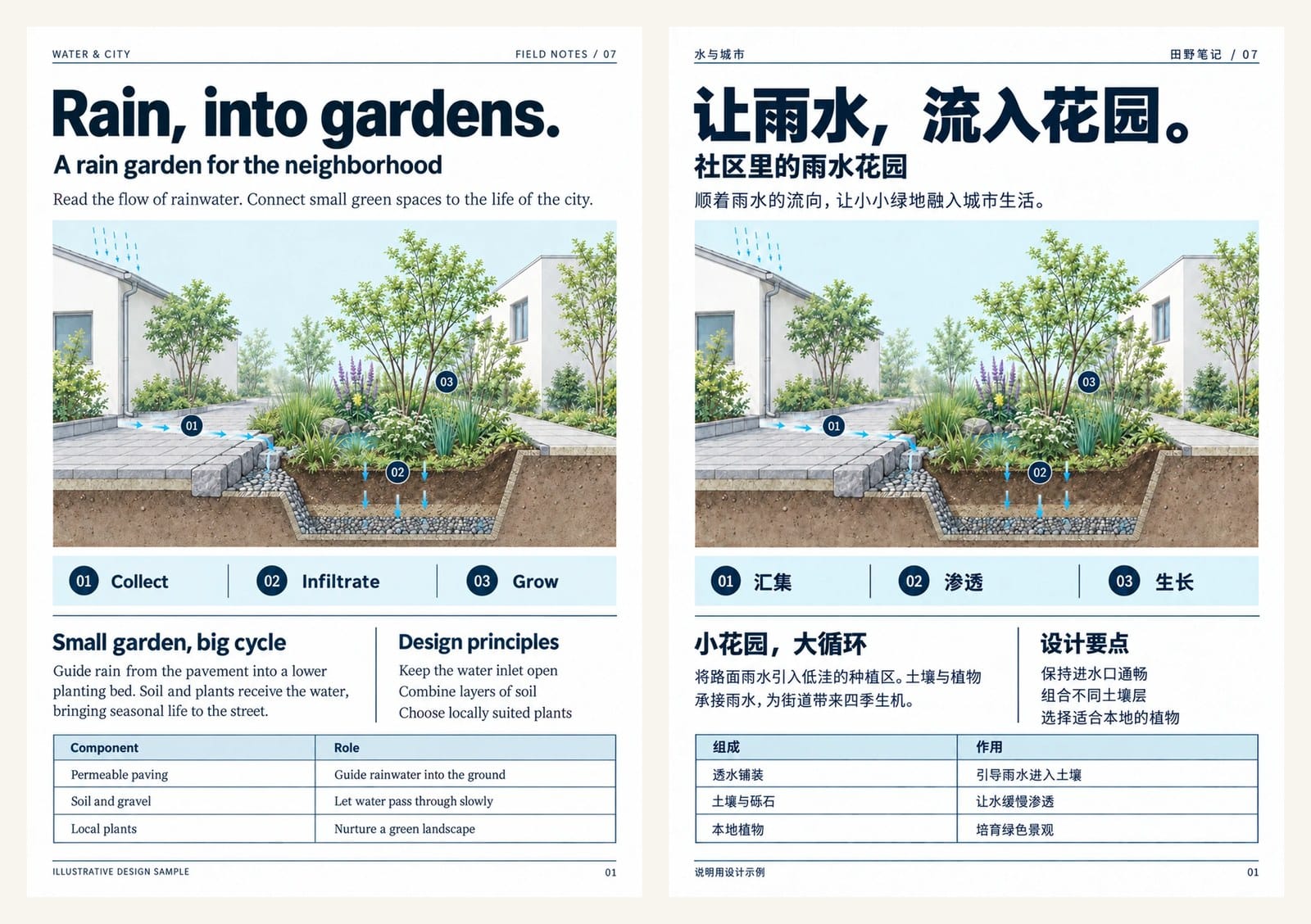
- Bilingual side-by-side PDF: original and translation next to each other. Best for reviewing and for study, when you want to glance at the source wording. Pages are wide, so a large screen helps.
- Bilingual top-bottom PDF: the original page followed by its translation. Easier on a narrow screen and still lets you compare.
- Translation-only PDF: the most comfortable for reading a book from start to finish, and the shortest file.
A common pattern is to review in a bilingual version and read in the translation-only version. The guide on creating a bilingual PDF for side-by-side review shows how to set up the comparison.
How should you review a translated book?
Nobody proofreads 300 pages line by line, and you do not need to. Check each chapter or part in the same order, so problems show up early.
- Headings: compare chapter and section titles with the table of contents.
- Tables: open every complex table. Cells may be merged or shifted, so check that rows and units still line up.
- Figures: check that captions stay with their figures. Text inside images remains in the original language.
- Numbers: pick a few figures, dates, and measurements per chapter and match them with the source.
- One passage you know well: read it in full. A fluent sentence that says something the source never said is the warning sign to look for.
For a deeper pass on numbers and terminology, follow checking a PDF translation against the original.
Example: a 420-page technical book in three parts
This is an illustrative example, not a real customer case. Suppose you have a 420-page digital technical book. The checklist shows it is not a scan, but the last 40 pages are an index and a reference list you will not read, so you remove them. That leaves 380 pages, which you split at part boundaries: part 1, chapters 1–4 (130 pages); part 2, chapters 5–9 (140 pages); part 3, chapters 10–12 (110 pages). Each file starts with the table of contents and the abbreviations list. You preview the first pages, translate part 1, close the tab once the upload finishes, and wait for the email. You review part 1 with the five checks above in the side-by-side version, read it in the translation-only version, and translate the next part when your quota allows.
FAQ
What is the largest PDF iSomor can translate?
On the website, one file of up to 1,500 pages and 300 MiB. Larger files need to be split first.
Will iSomor translate only part of my file if my quota runs out?
No. It does not silently translate part of a document. Wait for your quota to reset, request more free quota, or split the file.
Can I close the browser while a long PDF is translating?
Yes, once the upload has finished. Do not close the page while it is uploading. You can choose to be emailed when the PDF is ready.
Should I split a 600-page book even if it is under the limit?
Often, yes. Splitting by part makes the job fit your quota more easily and lets you review one section at a time. It is not required.
Does the layout survive in a long book?
iSomor keeps tables, figures, formulas, multi-column text, and heading styles where possible. Complex pages can still differ, so compare them with the original.
Can I translate a scanned book?
No. Scanned PDFs are not supported, even after OCR. Look for an original digital edition from the author or publisher.
Is text in pictures and diagrams translated?
No. Text inside images stays in the original language.
Is the translation suitable as an official or certified document?
No. It is a reading copy. Check important passages against the original.
Ready to try a chapter? Upload a PDF to iSomor and preview the first pages before you translate the whole book.