
PDF Translation Leaves Text Untranslated? How to Find the Cause and Fix It
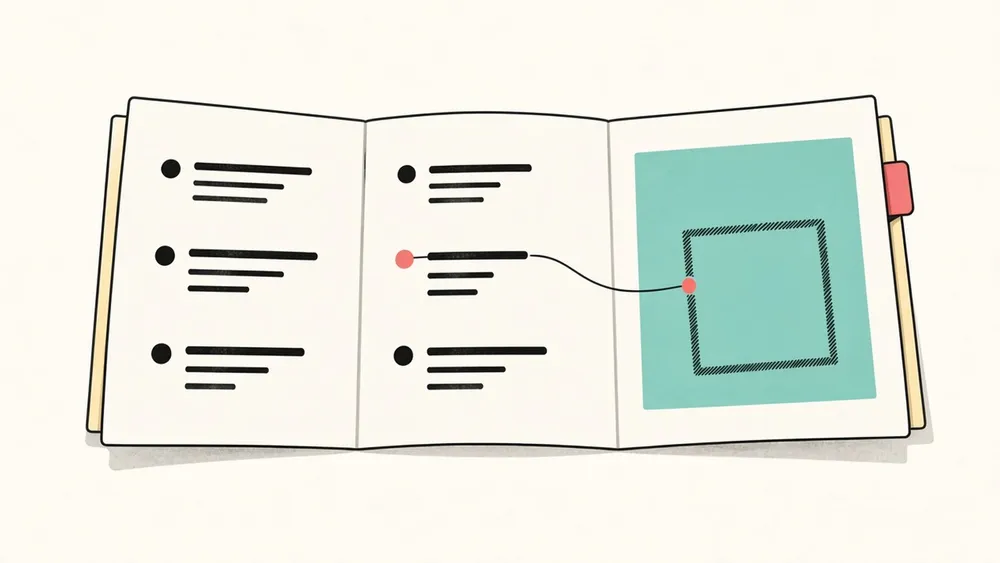
If some wording in a translated PDF is still in the original language, first check those words on the original page: can you select them, and does a paste into a plain text editor look like real text? Labels in charts, stamps, logos and screenshots are part of an image, and in a digital PDF they stay as they are, so you read them on the original. A whole page that comes back unchanged is often a scan or a picture; iSomor can translate scanned PDFs and photos after you sign in with Google or an email link and complete account verification. Other common causes are a wrong source language, fillable form fields that are not kept, or a text layer that copies as garbage.
What untranslated text usually looks like
| What you see | Likely cause | What to do |
|---|---|---|
| Chart labels, stamps, logos or screenshot buttons stay in the original language | Those words are part of an image | Read them on the original page; text inside images is not translated in a digital PDF |
| A whole page looks exactly like the original | That page is a scan or a full-page picture | Translate it as a scan after sign-in and verification (see below) |
| A passage is unchanged, or the translation reads like nonsense | Auto-detect may have picked the wrong source language | Select the source language yourself and translate again |
| Answers typed into a form are gone, while labels around the boxes may still be translated | Fillable form fields are not kept | Flatten the filled form first; see the form guide |
| You can select the words, but a paste comes out as strange symbols or empty boxes | The text layer does not map to real characters | Ask for a fresh export from the original document, or treat the pages as a scan |
These problems can appear together in one file, for example a digital report with a scanned signature page and a chart saved as a picture. Work through the checks below on the pages you actually need.
First, test the leftover words on the original

Open the original PDF, not only the translation, and test the words that stayed in the original language:
- Try to select those words and paste them into a plain text editor. If you cannot select them, or you can only select the whole page as one block, they are almost certainly in an image.
- Search the original for a distinctive word you can see. If search finds nothing, that page probably has no usable text layer.
- Zoom the line to 400% or more. Digital text stays sharp; a scan or a photo turns soft or blocky.
- Look at the pasted text. If the page looks fine but the paste is garbage, the text layer itself is broken.
Text inside images: charts, stamps, logos and screenshots
In a digital PDF, exported from Word, LaTeX or a web page, the body is stored as text and can be translated. A chart, a stamp, a logo or a screenshot is only pixels, so its labels stay in the original language.
This is expected, not a failed job. Read those labels on the original page, next to the translated body text. If the file is mostly charts or screenshots, you may want the original source file instead of the PDF, when you are allowed to use it.
A mixed file is common: the paragraphs translate, and the diagram in the middle does not. In that case, check the diagram on the original and use the translation for the surrounding text.
Scanned pages and photos in a mixed file
If a whole page of the translation looks exactly like the original, that page may be a scan or a photograph bound into an otherwise digital PDF. iSomor can translate scanned PDFs, image PDFs and photos (JPG, PNG or HEIC), but you need to sign in with Google or an email link and complete account verification first. The text is recognized before it is translated, and recognition can misread or omit content, so check names, dates, figures and small print against the original.
Each task covers up to 25 pages, and each file can have up to 500 pages. If the scanned section is longer, split it and translate the parts separately; how to translate only selected pages of a PDF shows how to extract a page range. More detail is in how to translate a scanned PDF and, if you are working from a phone, how to photograph document pages for translation.
The wrong source language
Automatic detection has to guess one language from the text it reads. A brochure in two languages, a contract with a long quotation, or languages that look alike can lead it to the wrong source language, so some passages come back unchanged or as nonsense.
If you know the language of the text you want to read, select the source language yourself instead of leaving it on auto-detect. If the document switches language by section, split it and translate each part with its own source language.
To start a new job, upload the PDF to iSomor, choose the language for the translated document, and set the source language yourself when you already know it.
Form fields are not kept
Fillable form fields are not preserved. Typed answers, checkboxes and drop-down choices do not appear in the translated or bilingual PDF, even when the printed labels around them are translated. If you need to keep what was filled in, flatten the form to ordinary page content first, then translate that copy. How to translate a PDF form explains the checks.
When the job stops instead of leaving body text untranslated
iSomor does not hand back a half-translated file as if it were finished. If part of a document cannot be translated, the job stops with this message: "Part of this document could not be translated, so the translation was stopped instead of delivering untranslated text. Please try again later." That is a different case from image labels that stay in the original language. For the stopped job, try again later, or split the PDF by page range and upload the parts separately, as PDF translation not working describes.
A very long file can also stop because it exceeded the time limit for a single run; splitting at chapter or section breaks is the usual next step.
Check the result against the original
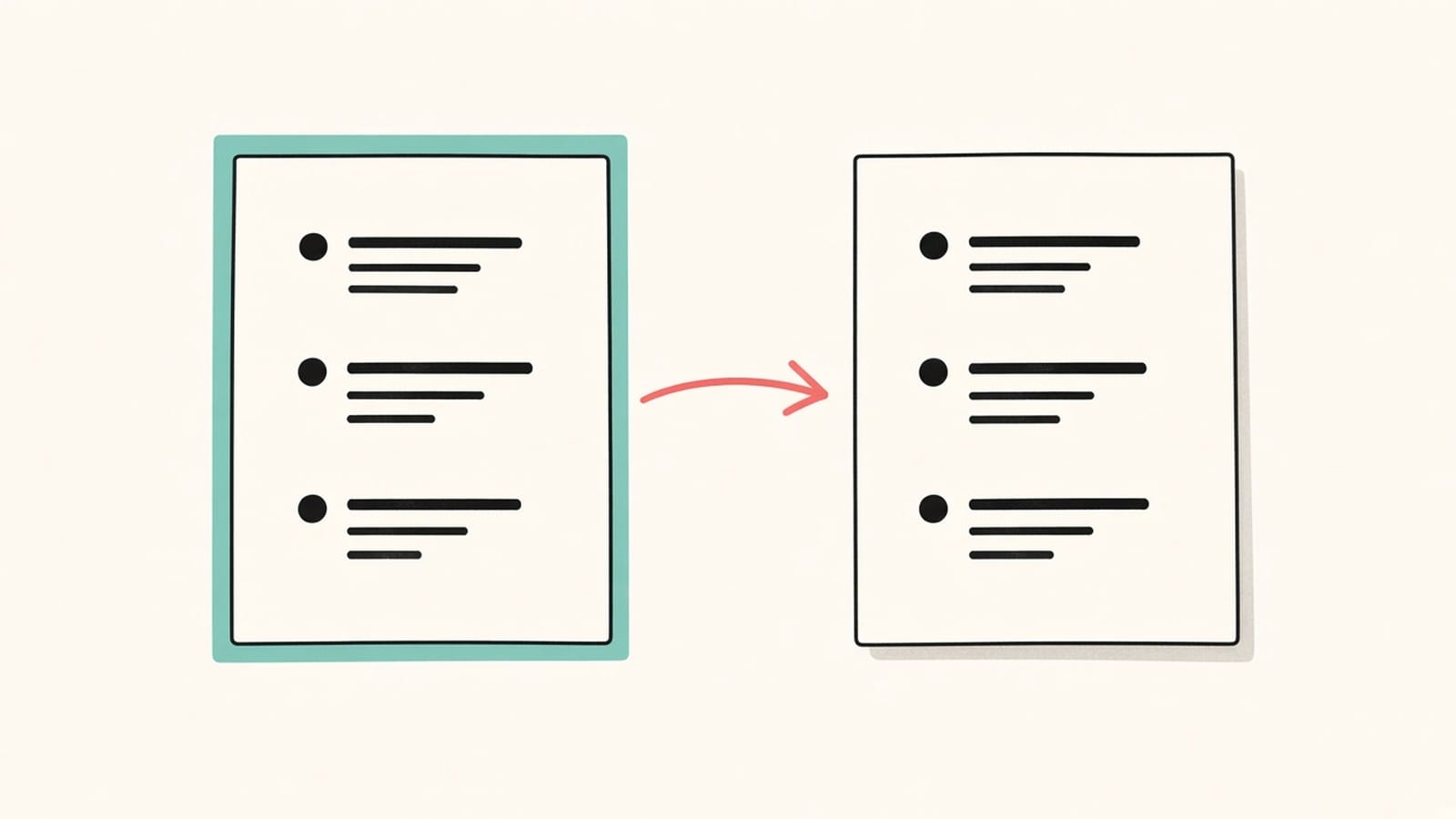
- Open the original and the translation side by side, or download a bilingual PDF as described in how to create a bilingual PDF for side-by-side review.
- For each leftover passage, decide whether it is inside an image, on a scanned page, in a second language, or in a broken text layer.
- Check names, dates and figures against the original; do not assume they were left as they were.
- In the bilingual view, check the terms that matter to you yourself.
A full method is in how to check a PDF translation against the original. For files that mix tables and pictures, see how to translate a PDF with tables and images.
Limits
- In a digital PDF, text inside images is not translated; read those labels on the original.
- Scanned PDFs and photos need sign-in with Google or an email link and completed verification. Recognition can misread or omit content. Each task covers up to 25 pages, and each file can have up to 500 pages.
- Fillable form fields are not kept.
- Each translation uses one source language.
- Layout is kept where possible, not guaranteed. Translated text is often longer, so it can wrap or shrink inside boxes.
- The translation helps you read and understand the document. It does not replace the original.
FAQ
Why are the labels on my chart still in the original language?
They are usually part of the image, not of the text layer. In a digital PDF those labels are not translated. Read them on the original page, next to the translated body text.
Why did a whole page come back unchanged?
That page is often a scan or a full-page picture inside the file. Translate those pages as a scan after you sign in and complete verification, and check the recognized text against the original.
Can iSomor translate a scanned page that was left untranslated?
Yes, after you sign in with Google or an email link and complete account verification. Text is recognized first, and recognition can misread or omit content, so check the result. Each task covers up to 25 pages, and each file can have up to 500 pages.
Why did the answers I typed into the form disappear?
Fillable form fields are not preserved. Flatten the filled form first, then translate that copy, and check every field against the original as described in the form guide.
The job stopped and said part of the document could not be translated. Is that the same problem?
No. That message means the job was stopped on purpose so that untranslated body text would not be delivered as a finished file. Try again later, or split the PDF and upload the parts separately. Image labels that stay in the original language are a different case.
How do I tell untranslated image text from the wrong source language?
If you cannot select the words, or they sit inside a chart, stamp or screenshot, they are image text. If you can select and copy them as real text, but the translation of that passage is unchanged or reads like nonsense, try setting the source language yourself.
Should I upload the file again without changing anything?
Only after you know the cause. Uploading the same digital PDF again will not translate labels that live inside images. Change the source language, treat scanned pages as a scan after sign-in, flatten a form, or split a long file, then translate again.