
How to Translate a PDF Form and Check Every Field Against the Original
To translate a PDF form, first work out which kind of form you have: a fillable electronic form, a PDF with printed text, or a scan or photo of a paper form. Translate it to understand the questions, then check every label, checkbox, date, name and number against the original, and write your answers on the original form. A translated form is a reading aid. It is not a copy to submit and not a certified translation, so ask the organization that receives the form what it requires.
Which kind of form do you have?
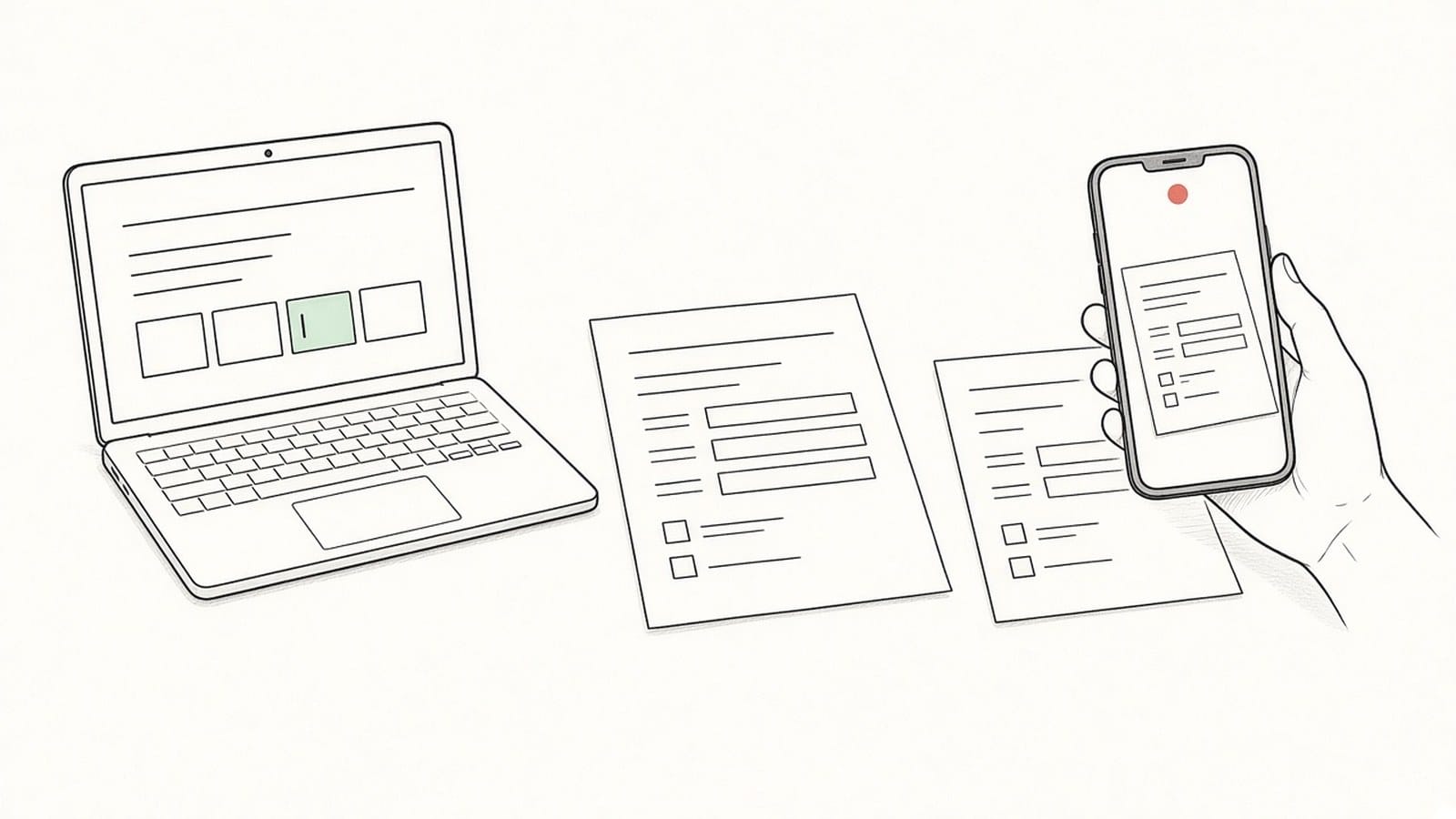
The same form can reach you in three shapes, and each one behaves differently when it is translated. Open the file before you upload it and find out which one you have.
| Form type | How to recognize it | What happens in translation | What to do |
|---|---|---|---|
| Fillable electronic form | Fields highlight when you click them, and you can type, tick boxes or pick from dropdown lists | The fillable fields are removed. Text you typed and the state of checkboxes do not appear in the translated or bilingual PDF, and the result cannot be filled in | Translate it to read the questions, then fill in the original file |
| PDF with printed text | You can select the labels and instructions, but the answer spaces are only lines and boxes drawn on the page | Printed labels, headings and instructions are translated and placed back in their boxes where possible | Translate it, then check the details below |
| Scan or photo of a paper form | The whole page is a picture; letters turn soft or blocky when you zoom in | The text is recognized first and then translated; recognition and layout may be wrong | See the guides on scanned PDFs and photographing pages |
If you have already filled in a fillable form and want your own entries to be part of the translation, one option is to print or export it to a flattened PDF first, for example with your viewer's print-to-PDF function, so the entries become part of the page. This is a suggestion, not a guaranteed result: open the flattened file and check that your entries are visible before you upload it. Password-protected PDFs are rejected, so use an unprotected copy you are allowed to process.
What happens to a form's layout when it is translated?
On a PDF with printed text, iSomor translates the labels, headings and instructions and puts them back in their original boxes where possible. A translated label is often longer than the original. When it does not fit, the text wraps onto another line and the font gets smaller, and the box may be expanded. Box lines, checkboxes drawn on the page and signature lines are kept.
Forms are full of narrow cells, and that is where most layout problems show up. Text in a very narrow cell can become very small or stacked, lines can overlap text, and merged cells can be merged incorrectly. In a PDF with printed text, handwriting, stamps and text inside images are not translated and stay as they are. If the target language is written from right to left, such as Arabic, the layout is mirrored, but photos, stamps and signatures are not.
None of this means a cell is wrong, but it does mean you should read the form cell by cell rather than trust the page because it looks tidy. For more on how tables behave, see whether translating a PDF distorts its tables.
How do you translate a form step by step?
- Keep the original and note the rules. Write down who receives the form, the deadline, and the language it must be filled in. The translation does not replace any of this.
- Check the form type. Use the table above. Decide whether you need your own entries in the translation or only the questions.
- Upload and choose the language. Upload the PDF on the iSomor upload page and choose the language you read best. Scans and photos need sign-in with Google or an email link and completed verification before they can be translated.
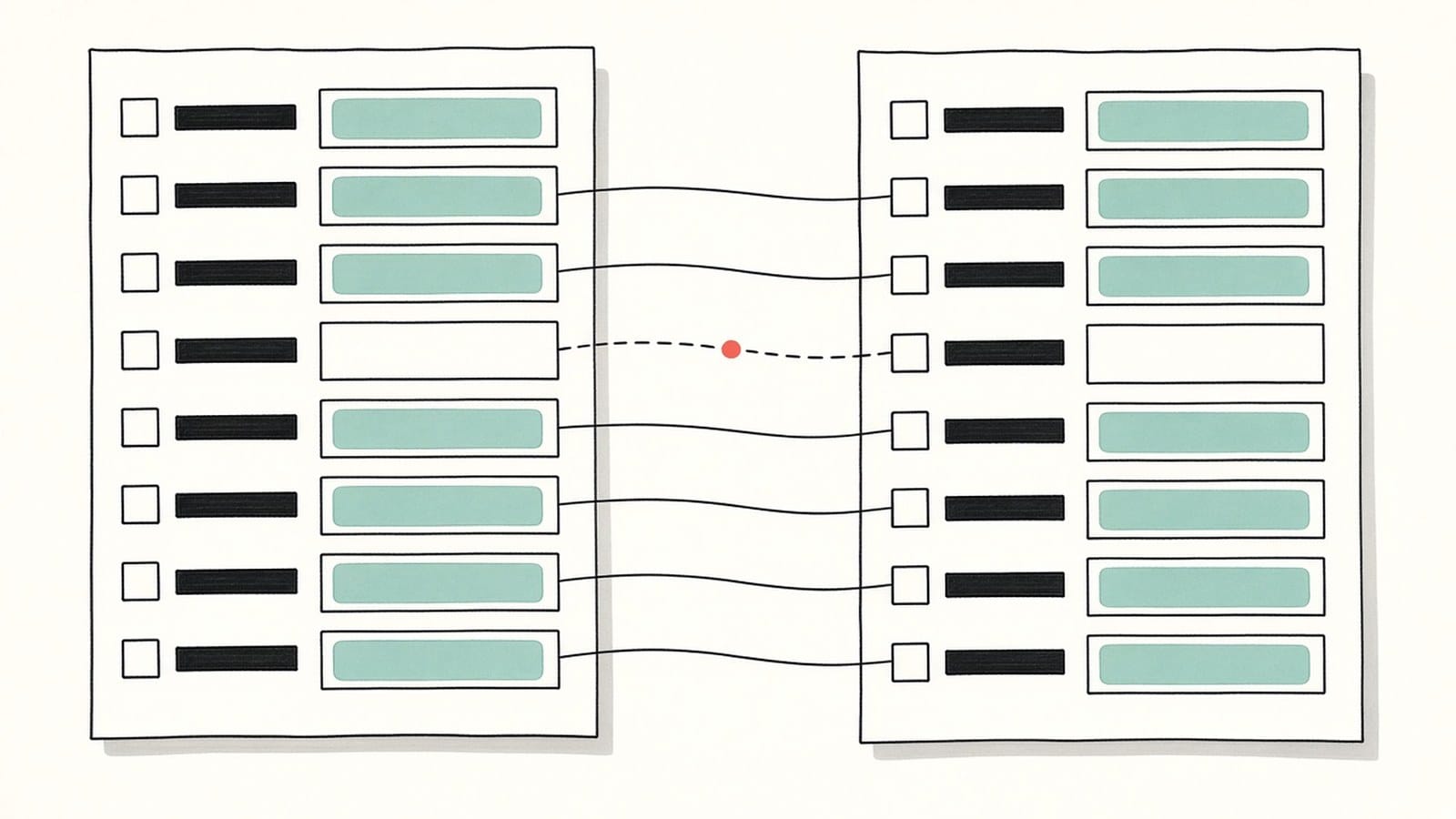
- Open the comparison. The web editor has a comparison view with the original next to the translation. You can also download a translation-only PDF or a bilingual PDF, side by side or top and bottom. In the product's words, the bilingual view lets you "check terminology, numbers, and complex passages against the original without losing context".
- Work through the checklist. Use the list in the next section, then write your answers on the original form, not on the translation.
Which parts of a form need checking?
These are the places where a form translation most often misleads a reader, even when every sentence reads well.
| What to check | What can go wrong | How to check it |
|---|---|---|
| Label and answer space | After wrapping, a label can look as if it belongs to the box next to it | For each label, find the same label in the original and confirm which box it refers to |
| Checkboxes and options | An option can be shortened or reworded, and "tick one" can become unclear | Count the options in both versions and read the instruction above them: one choice or several |
| Dates | 03/04/2026 is 3 April in many countries and March 4 in others | Look for a format hint such as DD/MM/YYYY in the original, and write the date in that format |
| Names | Family name and given name can be swapped, and names can be respelled | Match the original field labels, and write your name exactly as it appears in your passport or ID |
| ID and record numbers | Digits and letters such as 0 and O can be confused, especially in scans | Copy numbers from the original or from your own documents, never from the translation |
| Signatures and signature lines | A signature line is kept, but a translation is not a signed document | Sign only the original, where and how the original asks |
| Seals and stamps | A stamp is usually an image, so its text stays in the original language | Read the stamp in the original; a translated page does not verify it |
| Handwritten entries | In a PDF with printed text, handwriting is not translated; in a scan it may be misread | Read handwritten parts in the original, and ask the person who wrote them if unclear |
| "For official use only" boxes | They can look like questions you should answer | Find these sections in the original and leave them blank |
| Instructions and small print | A condition such as "only if", a deadline or a list of attachments can lose its force | Read every instruction sentence against the original, especially words like not, only, unless and before |
Dates are worth a second look because the digits are the same in both versions and only their order changes the meaning. Some forms use the international ISO 8601 order, year-month-day, such as 2026-04-03 (see ISO's overview of the date format); others use day-month-year or month-day-year. Write the date in the order the original form asks for, not the order you are used to.
Key terms on a form, such as "applicant", "guardian", "residence" or "employer", should be checked by you in the bilingual view. The same term can be translated differently in different places, so confirm that each one means what the original means. For a wider method, see how to check a PDF translation against the original, and for names and words with several meanings, see how to check names and terms.
What is a translated form for, and what is it not?
Use the translation to understand what each question asks, what you need to attach and which sections are not for you. Then fill in the original form in the language the receiving organization asks for.
A translated form is not a replacement for the original and not a certified translation. It does not verify the source document, a stamp or a signature. If an office, school or employer needs a translation of a completed form, ask them whether they require a certified or sworn translation, and in which format, before you prepare anything.
What are the limits?
- Fillable fields are removed during translation. Typed text, checkbox states and dropdown choices do not appear in the translated or bilingual PDF, and the result cannot be filled in.
- Labels and instructions are placed back in their boxes where possible. Long text wraps and shrinks, very narrow cells can end up with tiny or stacked text, lines can overlap text, and merged cells can be merged incorrectly.
- In a PDF with printed text, handwriting, stamps and text inside images are not translated.
- Scans and photos need sign-in with Google or an email link and completed verification. Their text is recognized first; "Text recognition can misread or omit content, and the translated layout may differ from the original."
- For right-to-left target languages, the layout is mirrored, but photos, stamps and signatures are not.
- Password-protected PDFs are rejected.
- This is not a certified translation.
FAQ
Will the answers I typed into a fillable PDF be translated?
No. Fillable fields are removed during translation, so typed text and checkbox states do not appear in the result. If you need your entries in the translation, you can try printing or exporting the filled form to a flattened PDF first so the entries become part of the page, then check the file before uploading.
Can I fill in the translated PDF?
No. The translated and bilingual PDFs cannot be filled in. Use them to understand the questions and fill in the original form.
Can I submit the translated form instead of the original?
Usually not. Most organizations expect their own form, completed in the language they specify. If they also need a translation, ask whether it must be certified.
Are stamps, signatures and handwriting translated?
In a PDF with printed text, handwriting, stamps and text inside images are not translated and stay as they are. In a scan or photo, the text is recognized first, and handwriting and stamps can be misread, so always read them in the original.
Will the boxes and lines stay in place?
Box lines, drawn checkboxes and signature lines are kept, and labels are placed back in their boxes where possible. Narrow or merged cells can still come out wrong, so check names, numbers and dates cell by cell.
I only have the form on paper. What should I do?
Scan it or photograph it one page at a time. The guide on photographing document pages for translation covers the photos, and what to check with a scanned PDF covers the recognized text. To keep both versions together while you check, use a side-by-side bilingual PDF.