
One Word, Several Meanings: How to Check Names and Terms When Translating a PDF
When a word in your PDF can mean more than one thing, decide its meaning from the surrounding text before you trust the translation, write that decision down once, and then check every occurrence against the original. A translation can choose the wrong sense of a word and still read smoothly, so the mistake only shows when the source sits next to it. The practical method is a short term list plus a bilingual view of the source and the translation.
Why can one word go wrong even in a fluent translation?
Most words have one obvious meaning, but some have two or more, and only the context tells you which one the author meant. A translator, human or machine, has to choose. When the choice is wrong, the sentence in the target language is still grammatical and natural, so a reader who only sees the translation has no signal that anything happened. The error is not a broken sentence; it is a correct sentence about the wrong thing.
The risk grows in long documents. A term can be clear in the introduction, where the author defines it, and then appear alone on page 80, far from that definition. It can also be translated one way in chapter 2 and another way in chapter 6, which leaves the reader wondering whether the author is talking about two different things.
Which kinds of words are worth checking?
You do not need to check every word. Focus on the kinds that are most likely to change meaning between languages.
- Everyday words with a specialist sense. "Bank" is a financial institution in an economics report and the side of a river in a hydrology study. "Cell" can be a biological cell, a battery cell, a prison cell, or a cell in a spreadsheet table.
- Technical words that change by field. "Resolution" means image detail in a display specification, a formal decision in meeting minutes, and the end of a problem in a support report.
- Names and historical terms. The Turkish word "Türk" can refer to the Turkic peoples and languages as a broad historical and linguistic family, or to Turkey and Turkish people specifically. Chinese, for example, uses different words for the two senses, so a translator has to pick one, and the choice depends on whether the passage is about a historical language family or a modern country.
- Abbreviations. A short form such as "PM" or "CA" can stand for several different things. Find where the document first spells it out.
- Defined terms. Reports and manuals often give an ordinary word a fixed meaning, for example "the Device" or "the Site". These should be translated the same way every time.
- People, organizations, and product names. Decide whether each name stays in the original, uses an established translation, or appears in both forms.
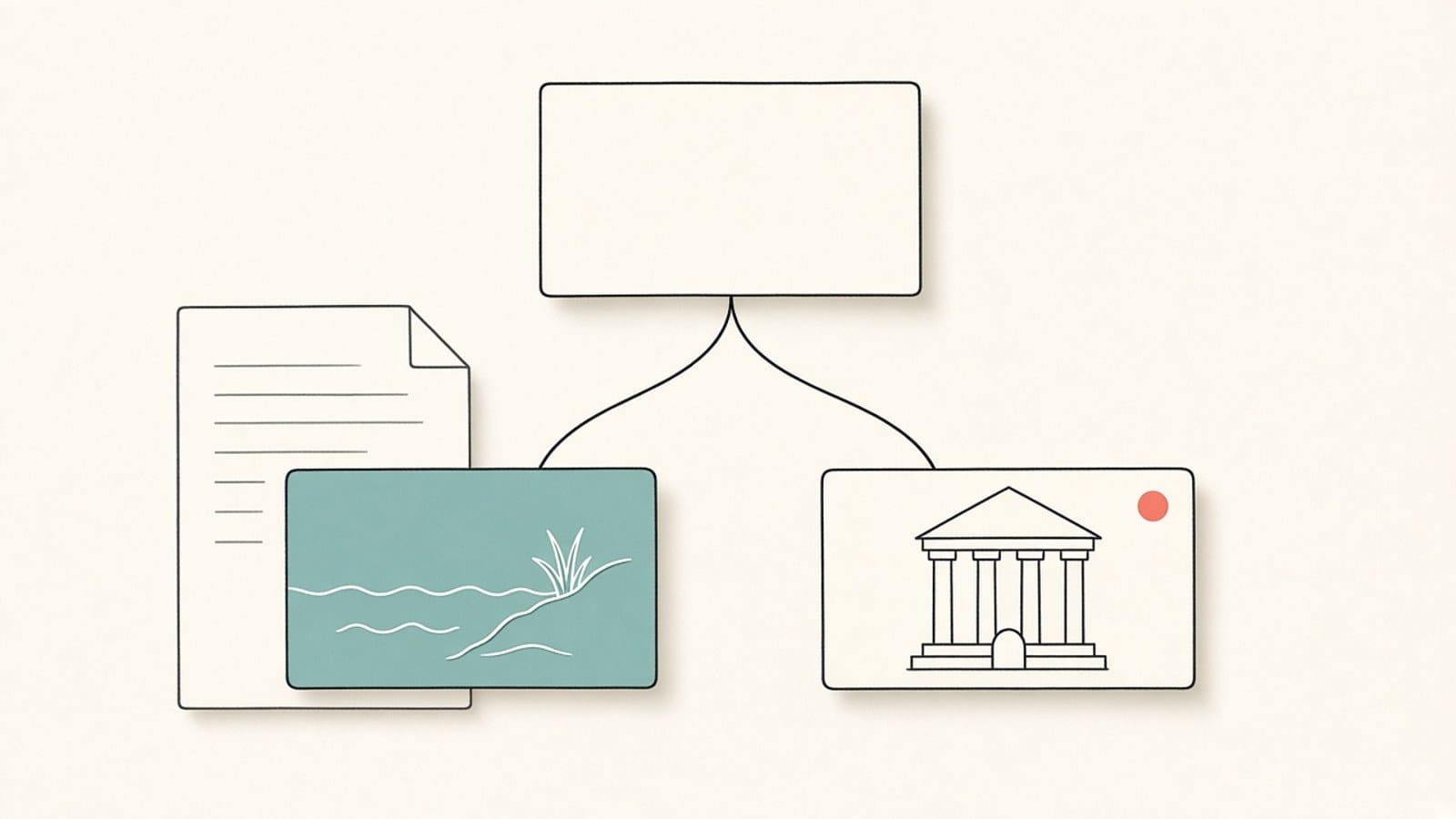
Illustration: one source word, two possible meanings.
How do you decide which meaning is right?
Look at the evidence the document itself gives you, in this order:
- The definition, if there is one. Check the glossary, the abbreviation list, or the first time the term appears. Authors often explain their own words there.
- The field and the section. A word inside a methods section of a biology paper is more likely to carry the biology sense. A word in a table header follows the topic of that table.
- The neighbouring words. "Battery cell voltage" and "cell membrane" settle "cell" on their own. Read the full sentence and the one before it, not just the word.
- Figures, tables, and captions. A chart axis or a photo caption often makes the intended sense obvious.
- An established translation. For names of places, organizations, historical periods, and standard terms, look up how reputable reference works in the target language already write it, rather than inventing a new rendering.
If the evidence still points both ways, mark the term as unresolved and ask someone who knows the subject. A note saying "unclear in the source" is more useful than a confident guess.
How do you build a short term list?
Before you read the whole translation, spend a few minutes on a term list. It does not need special software; a table in a document or spreadsheet is enough. Use four columns:
| Source term | Meaning in this document | Agreed translation | Note |
|---|---|---|---|
| bank | river bank (hydrology study) | the target-language word for riverbank | not the financial sense |
| cell | battery cell | the battery-cell term | spreadsheet "cell" appears only in Appendix B |
| Türk | depends on passage | Turkic (historical) or Turkish (modern country) | decide per section; note page numbers |
| resolution | display resolution | the display-detail term | not a meeting decision |

Illustration: a short term list kept beside the document.
Keep the list short. Ten to thirty terms that really matter are more useful than two hundred entries nobody checks. If several people review the same document, share one list so that everyone uses the same decisions. The two related guides on technical manuals and research papers also start with a short terminology list for the same reason.
How do you check each occurrence against the original?
Once the list is agreed, go through the translation with the source in view.
- Open the source and the translation together. A bilingual PDF puts both on the same page, side by side or one above the other, so you do not have to keep two windows in step. The guide to creating a bilingual PDF explains how.
- Search the source for each term on your list. Download the bilingual or translated PDF and use your PDF reader's built-in search to find every occurrence, then look at the translation in the same place. The online preview has no search of its own, and the browser's find command does not cover the whole file.
- Compare the sense, not just the word. Ask whether the translated sentence describes the same thing as the source sentence. A word can be consistent and still wrong if the whole list entry was wrong.
- Check consistency across the document. The same source term should usually get the same translation everywhere. If it changes, confirm that the meaning really changes at that point.
- Record problems in a log. Note the page, the source text, the translation, and what is wrong. Fix patterns once in the list, then recheck every occurrence.
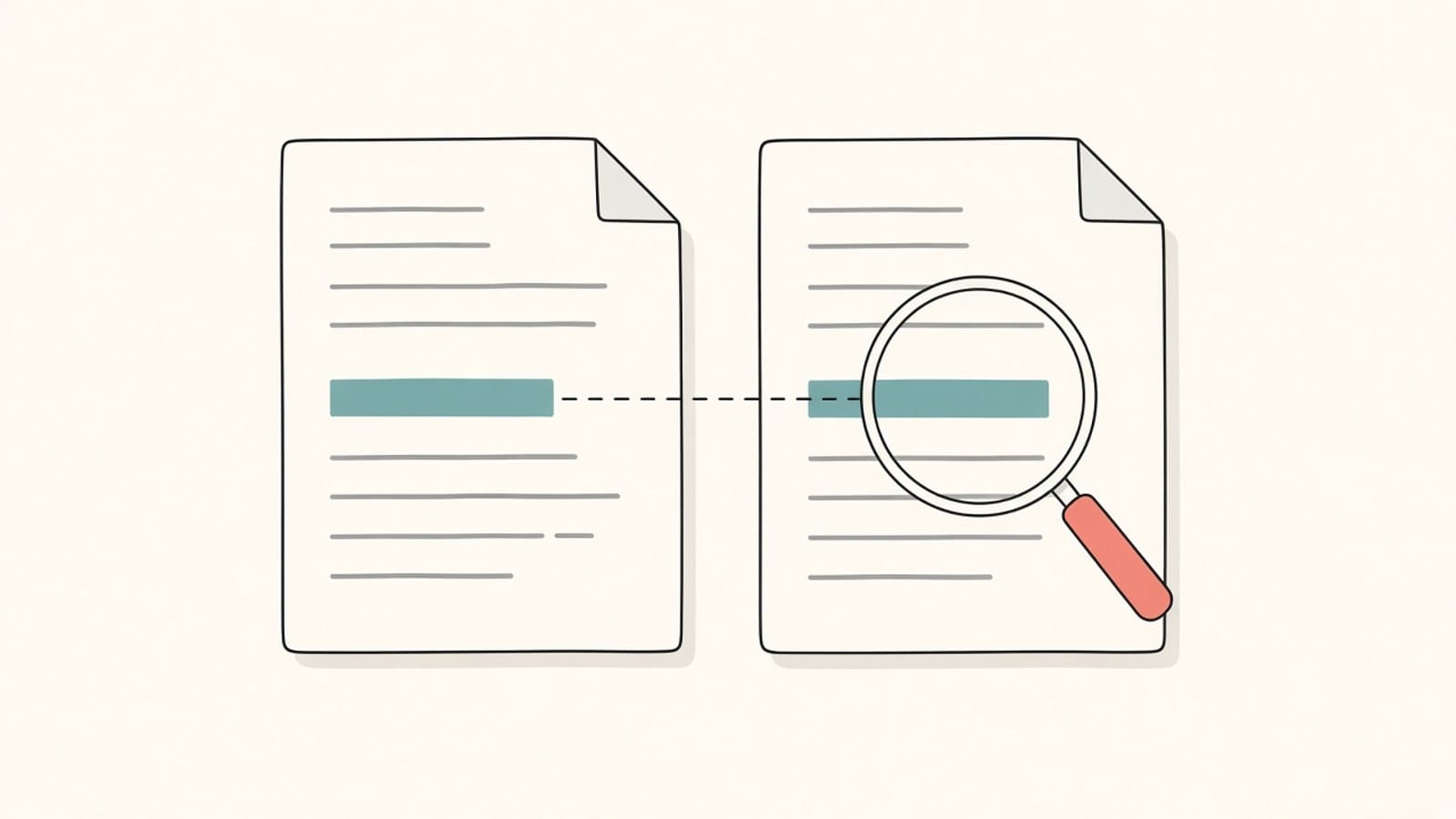
Illustration: checking the same spot in the source and the translation. Not an iSomor screenshot.
For a broader review that also covers numbers, negations, and tables, follow the pass-by-pass method in how to check a PDF translation against the original. Term checking is one pass in that process; this guide goes deeper into it.
What about long documents?
In a long PDF, terms drift. A good habit is to translate and check one early chapter first, settle the term list there, and only then work through the rest. If you need to start with part of the file, see how to translate only selected pages of a PDF. For books and reports of hundreds of pages, the workflow in how to translate a long PDF suggests reviewing chapter by chapter, which fits well with a term list that grows as you go.
Using iSomor for the side-by-side check
On iSomor, you upload an original digital PDF, choose a target language, and preview the result in the browser. You can download it as a Bilingual Side-by-side PDF, a Bilingual Top-bottom PDF, or a Translation Only PDF. iSomor describes the bilingual view as a way to "check terminology, numbers, and complex passages against the original without losing context", which is exactly the step this guide relies on. Layout such as tables, figures with captions, and multi-column text is kept "where possible", so a term usually stays near the table or caption that explains it.
iSomor can automatically extract terms from your document during translation, so that the same word is translated consistently across the file. It does not let you upload or edit your own glossary, and consistency is not the same as the right meaning: if a word like "bank" or "Türk" is ambiguous, a consistent translation can still be consistently wrong. That is why this guide still recommends checking ambiguous words yourself in the bilingual view. A few limits matter for terms in particular:
- Scanned PDFs are not supported, even after OCR. The file needs a real text layer. See what to check before translating a scanned PDF.
- Text inside images is not translated. Labels in diagrams and screenshots may stay in the original language, so terms that appear only in images need their own check.
- Layout is kept where possible, not guaranteed. The layout overview explains where it can still go wrong.
- The result is a reading and review copy. It is not a certified translation.
FAQ
How do I know if a word in my PDF is ambiguous?
Ask whether a reader from another field could understand the word differently. Words with an everyday and a specialist sense, abbreviations, defined terms, and names are the usual suspects. If you hesitate for even a second about which sense is meant, add it to your term list.
Should a term always be translated the same way?
Usually, yes, because readers assume that a change of word means a change of meaning. The exception is a word that really has two senses in the same document, such as "cell" in a battery section and in a table appendix. Record both senses in the list with the pages where each applies.
What should I do with names of people, places, and organizations?
Use the established form in the target language if one exists, and keep the original spelling when there is none. For less familiar names, showing the original once in brackets helps readers search for it later.
Can I check terms without a bilingual PDF?
Yes, but it is slower. You have to open two files and find the same place in both each time. A bilingual PDF keeps the source and translation on the same page, which makes each comparison quicker to set up.
Does iSomor let me upload a glossary?
No. iSomor does not support uploading or editing a custom glossary, and there is no personal term base. It can automatically extract terms from the document to keep translations consistent. For words with more than one meaning, keep your own term list and check it against the bilingual view.
What if a term in the source is itself unclear?
Do not let the translation decide for you. Mark it as unresolved in your list, note the pages, and ask the author or a subject expert. Leaving the original term visible next to the translation is a safe interim choice.
Is text inside charts and screenshots included in the check?
It should be, but iSomor does not translate text inside images, so those labels may stay in the original language. Compare them with your term list separately and add a note if readers need the translated sense.