
How to Translate a Supplier Invoice PDF and Check Amounts Yourself
To understand a foreign supplier invoice PDF, translate it and keep each original page next to its translation. Use the translation to understand labels and descriptions, then check the details that matter for payment and booking on the original yourself: invoice number, line items, quantities, unit prices, tax labels, totals, tax IDs and bank details. The original invoice remains the authoritative record. This guide is for reading comprehension, not for issuing invoices, and it is not tax, accounting, legal or payment advice.
Who is this guide for?
It is for buyers, freelancers, small importers and operations staff who received a supplier invoice, commercial invoice or billing PDF in a language they do not read comfortably, and who need to understand what is being charged before they pay, book the cost or ask the supplier a question.
Step by step
- Prefer a PDF the supplier exported from their billing system, not a photo of a printed invoice, if they can send one.
- Upload the PDF to iSomor and choose your language. For multi-page packs, translate the invoice pages you need to check first.
- Download the result in the Side by side layout, so each translated page sits next to the original. The setup is explained in how to create a bilingual PDF for side-by-side review.
- Read labels and item descriptions in the translation, then go through the checklist below with the original page open.
- When you reply to the supplier or enter the invoice in your books, copy invoice numbers, amounts, tax IDs and bank details from the original page, not from the translation.
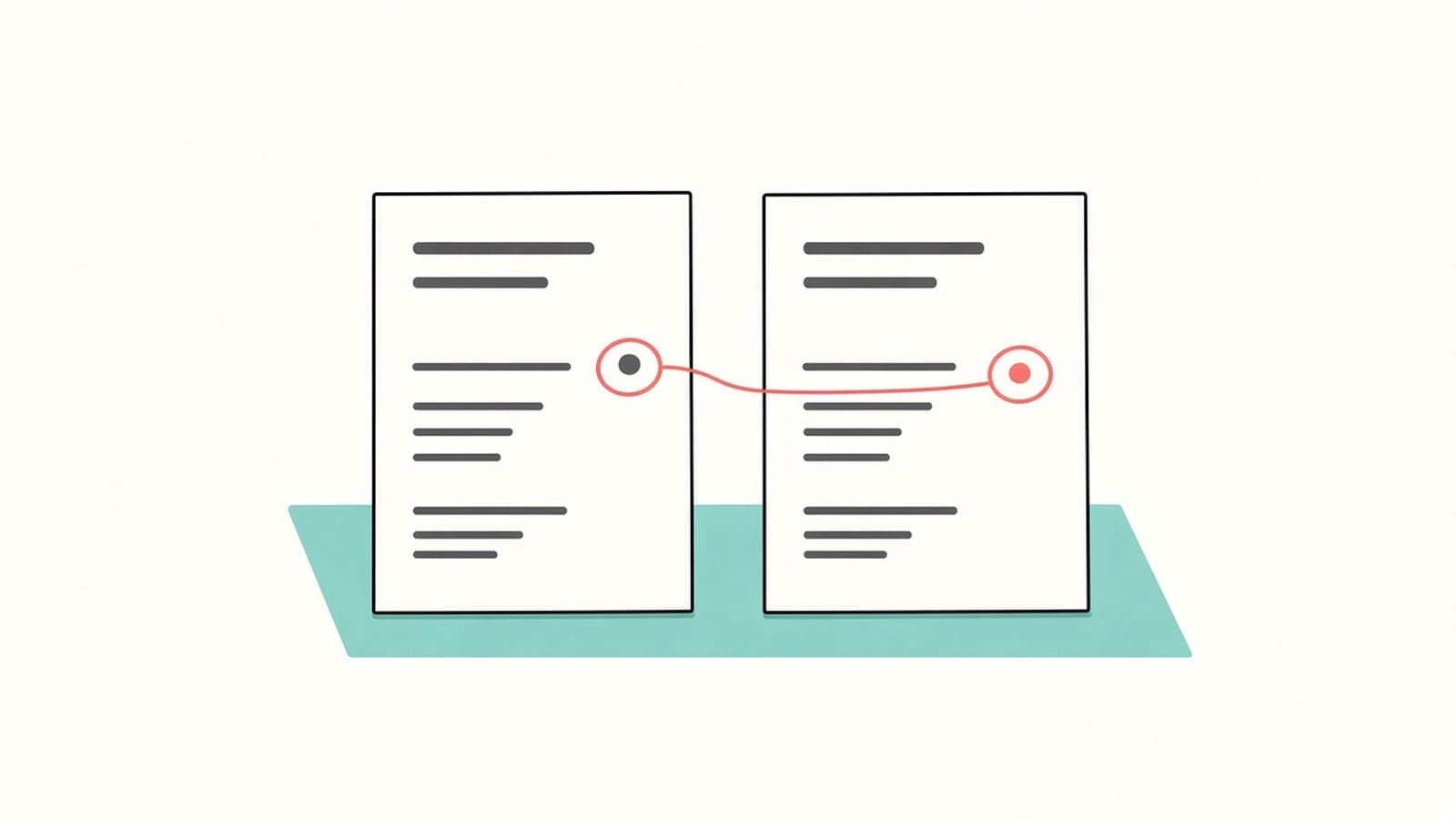
What should you check against the original?
| Detail | Why it matters | What to do |
|---|---|---|
| Invoice number and dates | Wrong reference breaks matching to a purchase order or payment | Copy the number and dates from the original page |
| Supplier and buyer names | A similar name may be a different legal entity | Confirm the names and addresses on the original |
| Line items and descriptions | Quantity or item can shift when text wraps | Read each line you will pay for on the original |
| Quantities, unit prices, discounts | One wrong digit changes the total | Multiply quantity × unit price yourself and compare |
| Tax labels and rates | VAT, GST, IVA, MwSt. and similar labels are easy to misread | Check the label, the rate and the tax amount on the original |
| Subtotal, tax total, grand total | Displayed totals must match the lines you accept | Recalculate where you can; if unclear, ask the supplier |
| Tax IDs (VAT / GST / EIN-style IDs) | Wrong ID breaks compliance checks | Copy characters from the original, character by character |
| Bank details (IBAN, BIC, account, beneficiary) | Wrong details misdirect payment | Read every character on the original; do not trust a rewritten string |
| Purchase-order or reference fields | Missing or wrong references delay payment | Confirm they match your records on the original |
Comparing key facts is covered in more detail in how to check a PDF translation against the original.
What about a scanned invoice or a phone photo?
Take a clear photo or scan of each page, flat and in good light. To translate scans and photos, sign in with Google or an email link and complete account verification. The text is recognized before translation, and recognition can misread or omit content, especially small print in totals and bank lines, so check every number and ID against the photo. Tips are in how to photograph document pages for translation.
What are the limits?
- Text inside stamps, logos, QR codes and payment barcodes is not translated, so read those parts on the original.
- Layout is kept where possible; translated text can be longer and wrap differently in dense tables.
- Fillable fields are not kept in the translated PDF, so do not treat the translation as a form you can submit; see how to translate a PDF form and check every field.
- Do not assume amounts, tax IDs or IBANs were left unchanged by translation. Verify each one against the original yourself.
- Key terms such as tax labels may be worded differently across pages; check them in the bilingual view rather than relying on automatic consistency.
- The translation helps you understand the invoice. It does not approve a payment, confirm tax treatment or replace your accounting process. The original remains authoritative.
- If the invoice sits next to a wider supplier relationship, you may also need how to read a foreign vendor contract or NDA PDF side by side or how to translate a supplier's product catalog PDF. For denser financial statements, see how to translate an annual report PDF.
FAQ
Can I pay from the translated PDF?
No. Treat the translation as a reading aid. When you pay or book the invoice, use the amounts, tax IDs and bank details from the original file or from your supplier's official channel.
Will the translation keep every number exactly as printed?
Do not count on it. Check invoice numbers, quantities, prices, tax amounts, totals, tax IDs and bank details on the original page, one by one.
The invoice has a QR code or payment barcode. Is that translated?
No. Codes and images stay as they are. Read any human-readable text next to them on the original, and use your usual payment process.
The totals do not add up in my language. What should I do?
Recheck the arithmetic on the original. Rounding, tax rules and currency formats differ by country. If you still cannot reconcile the figures, ask the supplier before you pay.
Have a supplier invoice you cannot fully read? Upload the PDF to iSomor, download it Side by side, and check the line items, tax labels and bank details against the original before you act on it.